
Delaware Courts Wireless Access
State-Guest-Net is a free wireless access point available for public use in the Leonard L. Williams Justice Center, Kent County Courthouse, Sussex County Courthouse, and Family Court Kent and Sussex Courthouses.
Please click on the device you wish to connect and it will expand with step-by-step instructions.
To connect your laptop to State-Guest-Net:
-
Open "Connect to a Network" by clicking the wireless icon (
 ) in the system taskbar.

- The utility will display any available wireless networks in your area.
-
In the list of available wireless networks, click on "State-Guest-Net", and then click "Connect."
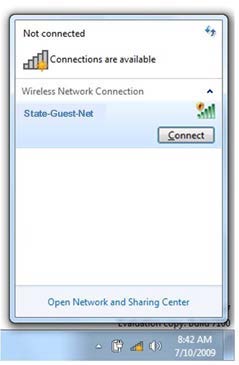 Note: You will not actually be connected until you accept the disclaimer and the only way for the disclaimer to appear is by opening an Internet browser.
-
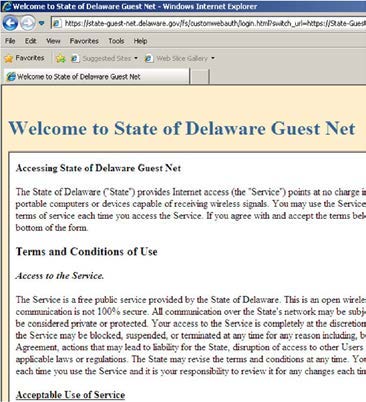
Open Internet Explorer to read and accept the Terms and Conditions of Use.
-
After you have read the Terms and Conditions of Use, click "Accept."
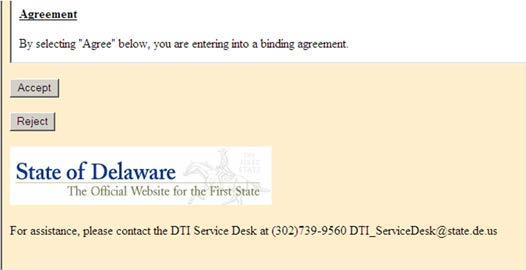
- Once you have accepted the disclaimer you will have wireless access.
If the internet browser on your laptop gets an error and does not open to the Terms and Conditions of Use acceptance page:
If the internet browser on your laptop gets an error and does not open to the Terms and Conditions of Use acceptance page, you may have a preconfigured proxy server on your laptop. Follow these steps to configure your Internet options, disable a proxy server and enable automatic configuration.- Close all Internet Explorer windows.
-
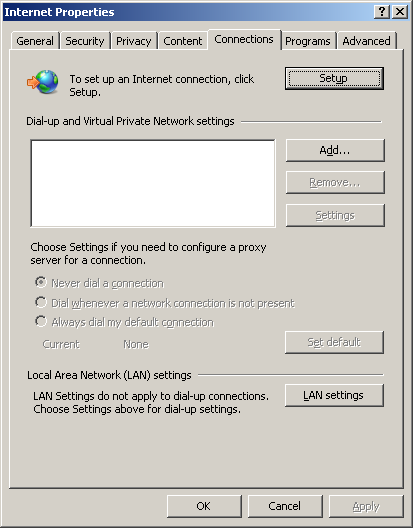
Click on the Start button, open the Control Panel, Internet Options. Click on the "Connections" tab, click on "LAN settings" at the bottom.
-
Check "Automatically detect settings" and uncheck "Use a proxy server for your LAN".
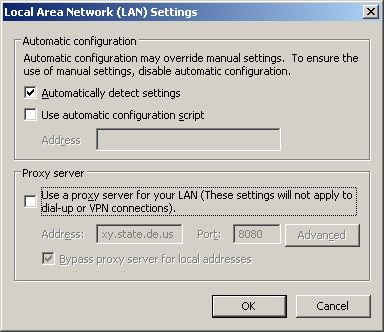
- Reopen Internet Explorer and follow instructions to read and accept the Terms and Conditions of Use.
To connect your Android Smartphone to State-Guest-Net:
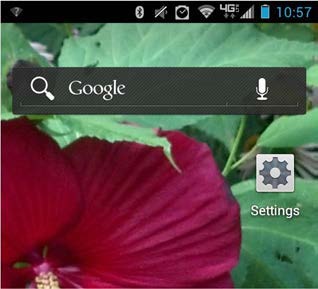
- Tap the "Settings" icon
 to open your Smartphone Settings.
- If Wi-Fi is OFF, slide the Wi-Fi switch to the ON position.
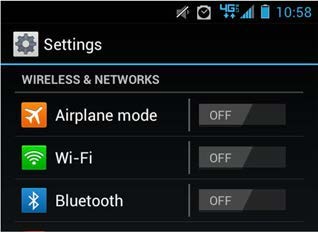
The device scans for available Wi-Fi networks and displays the names of those it finds. Secured networks are indicated with a lock icon. Note: State-Guest-Net is unsecured.
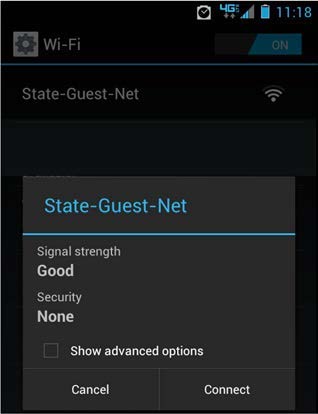
Tap the "State-Guest-Net" network name, click Connect.
-
You are now connected to State-Guest-Net but will still need to read and accept the Terms and Conditions of Use before you have internet access:
- You may see a question mark symbol at the top left of your Android phone. Touch the "?" and slide downward to reveal the acceptance screen.
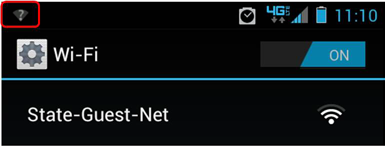
- OR open an Internet browser.
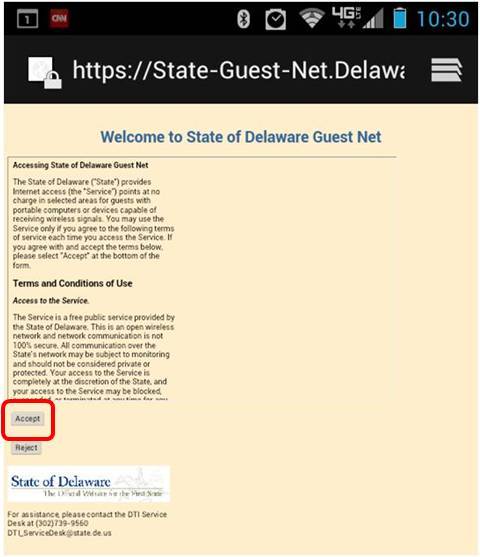
- You may see a question mark symbol at the top left of your Android phone. Touch the "?" and slide downward to reveal the acceptance screen.
- Read and accept the Terms and Conditions of Use. You are now connected to State-Guest-Net
To connect your iPad or iPhone to State-Guest-Net:
-
Tap Settings from the iPad/iPhone main screen
 .
-
Tap Wi-Fi.
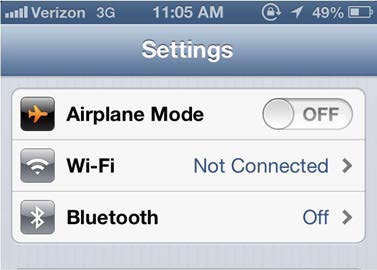
- If Wi-Fi is OFF, turn it on by tapping the ON/OFF icon.
-
Available Wi-Fi networks appear under "Choose a Network..."
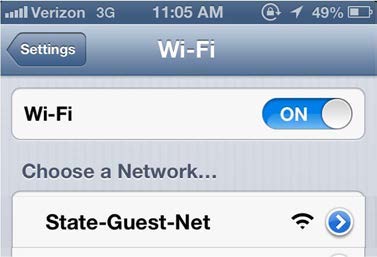
- Tap on the left side of the "State-Guest-Net" Wi-Fi network to join. Note: Tapping on the right will bring up the network settings screen for "State-Guest-Net" which is not needed.
-
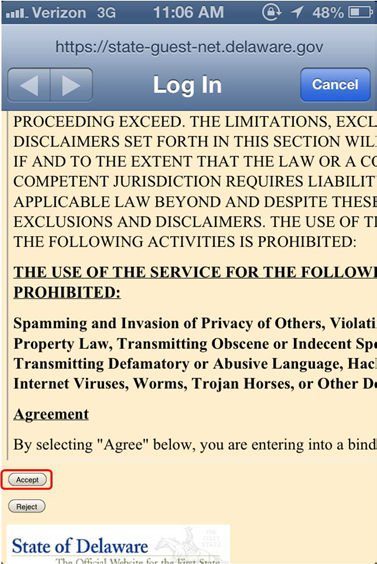
Once connected a Log In screen will appear. Read the Terms and Conditions of Use and tap on Accept.
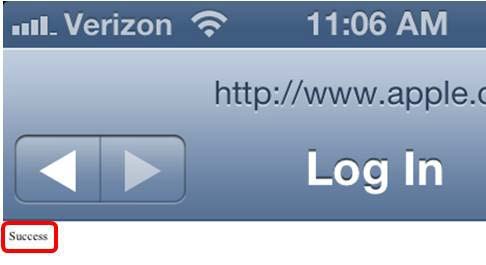
- You have successfully connected to "State-Guest-Net". You will see a very small "Success" message.
State-Net wireless access is available only for those devices previously defined to the State's network and for individuals with email addresses ending in "delaware.gov".